


Inside the Windows 11 Start Menu Redesign: Smarter, Cleaner, More Useful
Microsoft just gave the Windows 11 Start menu a major refresh. The redesign adds flyouts, a built-in sidebar, and improved customization to give users smarter access to apps and files.
In this article, we’ll explore what’s new, how to use it, compare it to the old style, and whether the upgrade lives up to expectations.
📋 Content Outline
- What’s changed in the Start menu redesign
- Flyouts, sidebar, pinned apps — new features
- Improved customization and layout controls
- Performance, responsiveness, and UX polish
- Integration with File Explorer & search
- Comparison vs Windows 10 Start
- Limitations and user feedback
- How to try the new Start now
- Who benefits most from the redesign
- Final verdict
1. What’s Changed in the Start Menu Redesign
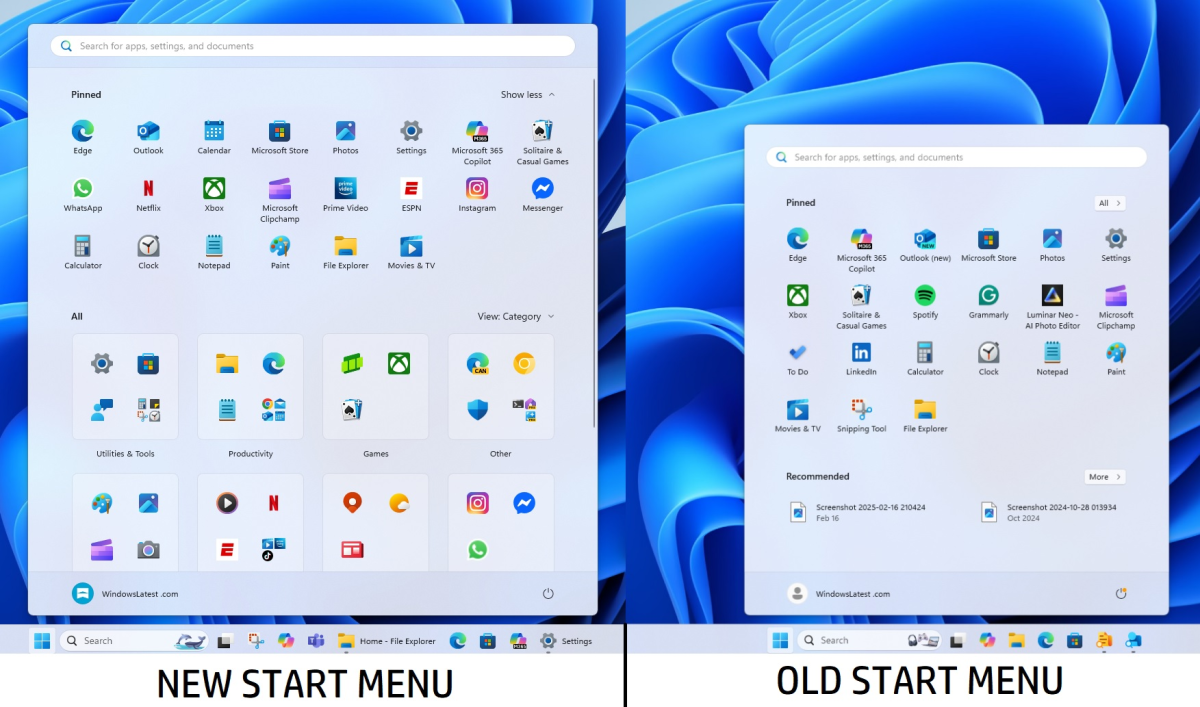
The new Start menu redesign introduces a fresh layout. Now, icon-based sidebar, flyouts from pinned apps, and dynamic previews make navigation faster.
Microsoft aimed to make the Windows 11 Start menu more intuitive, less cluttered, and more context-aware. The focus is on giving power users faster access without losing simplicity.
2. Flyouts, Sidebar, Pinned Apps — New Features
One standout addition is flyout menus. Hover or click a pinned app and a small panel shows recent documents or actions, saving you clicks.
The sidebar adds quick access to user documents, settings, and File Explorer—right inside the Start panel.
Pinned apps now feel more dynamic. You can group or reorder them with more flexibility than before.
These changes make exploring your system feel more immediate and powerful.
3. Improved Customization & Layout Controls
The redesign also expands how much you can personalize your Start menu. You can adjust layout density, pin vs recommended items, show or hide parts of the UI, and even theme-specific accents.
For power users, these deeper settings make the Start menu customization more meaningful than ever.
4. Performance, Responsiveness & UX Polish
Redesigns can slow down UX—but Microsoft appears to have optimized for speed. Animations feel smoother, interactions are snappier, and transitions fade better.
Using the Windows 11 Start menu in everyday tasks feels more fluid than before. Responsiveness is noticeably improved.
5. Integration with File Explorer & Search
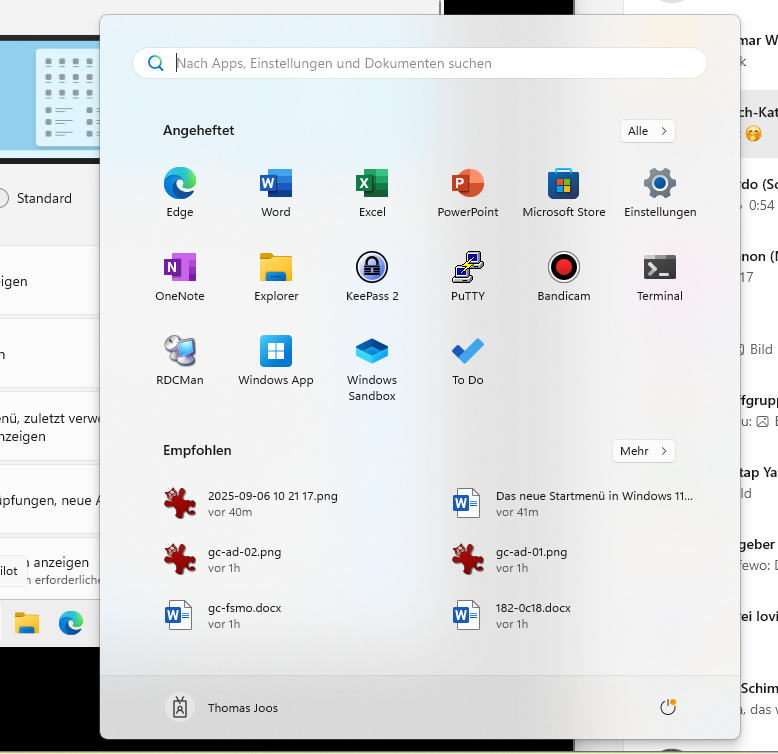
A big win is integrating parts of File Explorer into the Start menu. You can access recent files or important folders right from the Start panel.
Search is smarter too. When you type, results blend apps, files, settings in a cleaner view, making discovery faster.
6. Comparison vs Windows 10 Start
Back in Windows 10, Start had tiles, live updates, and a more blocky layout. The redesign discards most of that in favor of a modern, minimal UI.
For users upgrading from Windows 10, the change may take some getting used to—but it’s generally more streamlined and less distracting.
7. Limitations & User Feedback
Some users note missing features: less room for app groups, some flyouts feel inconsistent, and not every app supports flyout content.
Some power users miss tile groups and deep customization from Windows 10. Others want more integration of widgets or theme support.
Overall, users are pleased but cautious—this Start menu upgrade is solid, not perfect.
8. How to Try the New Start Now
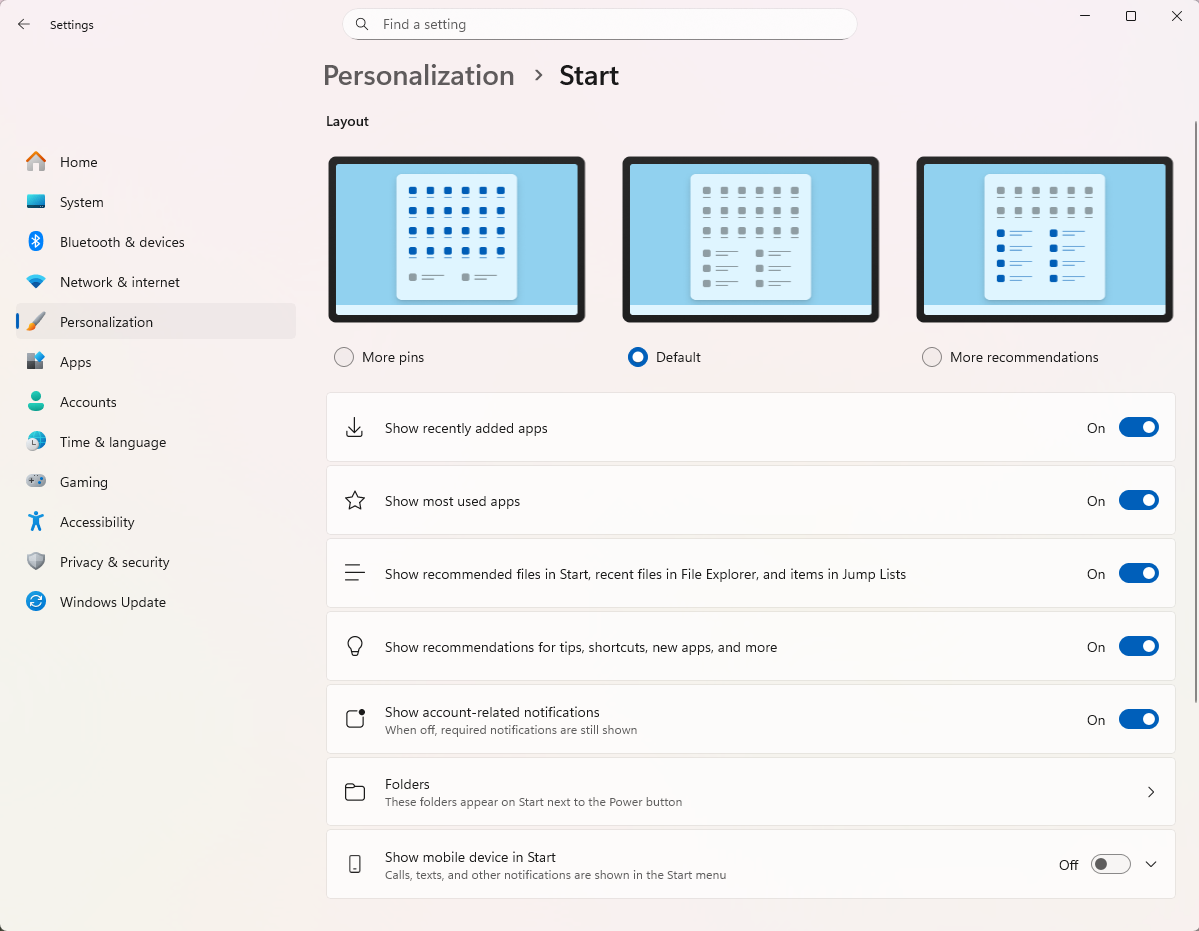
If your Windows 11 is Insider build or public update, you can enable the redesign via Settings > Personalization > Start or a toggle in Windows Update.
Back up your settings first—some changes may not revert smoothly.
9. Who Benefits Most From the Redesign
- Power users who use a lot of pinned apps or work with frequent documents.
- Users who like clean UI and quick access without digging through menus.
- Professionals, students, or anyone who uses their PC for multitasking daily.
Less ideal for:
- Users who heavily relied on Windows 10 tile setups.
- People who prefer widget-heavy or highly themed UIs.
10. Final Verdict
The Windows 11 Start menu redesign is a thoughtful upgrade. It improves usability, introduces smart flyouts, and integrates tasks into one place with style.
It’s not flawless—some features are missing or inconsistent—but it’s a strong direction. If you use Windows daily and crave speed and clarity, the new Start is worth embracing.
Windows 11 25H2 Update Version Enters Final Release Preview Stage
FAQs
How do I enable the new Start menu?
Go to Settings > Personalization > Start, or use the Windows Update that includes the redesign toggle.
Can I switch back to the old Start menu?
Yes, at least in some versions. You may need to roll back the update or toggle off the redesign.
Will all apps support flyouts?
Not yet. Only some modern apps have flyout support; more will likely be added by developers in time.